Burnout is a growing problem in tech, but there’s a solution: project management tools. These tools help teams reduce stress, save time, and focus on meaningful work by automating repetitive tasks, centralizing information, and clarifying roles. Here’s the quick takeaway:
- Burnout in tech is common: 42.1% of tech workers face a high risk, and 62% feel drained.
- Key challenges: Administrative overload, scattered tools, and unclear priorities.
- How tools help: Automate workflows, organize tasks, track progress, and align team efforts.
- Top tools compared: Trello (simple tracking), Asana (complex projects), and Monday.com (custom workflows).
- Key features to look for: Task assignment, automation, integrations, and real-time dashboards.
If you’re overwhelmed with endless tasks and meetings, project management tools can help you work smarter, not harder. Let’s break down how to choose and use the right one for your team.
3 Best Project Management Tools Reviewed (Trello vs Monday vs Asana)
Why Tech Entrepreneurs Need Project Management Tools
For tech entrepreneurs, shifting from being overwhelmed by tasks to achieving meaningful results starts with centralizing work and communication. A lot of time is lost on "work about work" – things like digging through endless email threads for documents, chasing down updates, or sitting in meetings that could have been replaced by a quick message. On average, employees juggle between 9 to 10 different tools daily, which not only disrupts focus but also creates confusion about priorities. This inefficiency highlights the need for streamlined workflows, which modern tools can deliver.
Project management tools tackle this problem by acting as a single hub where project plans, files, and conversations are all stored and tracked automatically. Research shows that these tools can cut project completion times in half while reducing errors by up to 90%.
But it’s not just about saving time – these tools also help combat burnout. When roles, responsibilities, and deadlines are clearly defined, the stress of uncertainty fades. Russell Benaroya, Co-founder and Partner at Stride Services, puts it this way:
"Distractions are costly… With Asana, people are able to get into a flow and do their work without disruption because everyone knows where things stand and what they’re responsible for – no stand up required."
How to Save Time by Organizing Workflows
Eliminating wasted time starts with better organization. Project management tools streamline repetitive administrative tasks through automation. For example, Josh Mitchell, Director of Engagements for Professional Services at GoSpotCheck, shared how automation rules saved his team 2 to 6 steps per customer request – across 40 to 50 requests per sprint – by automatically routing tasks to the right projects.
Templates are another huge time-saver. Instead of reinventing the wheel every time you launch a product or onboard a client, you can create reusable workflows that ensure consistency across projects.
Centralizing files and feedback is equally important. Roxane Chicoine, Creative Director at San Francisco AIDS Foundation, noted that before using a project management tool, much of her time was spent organizing work – managing requests, gathering updates, and hunting down details. By consolidating everything into one platform, she reduced review rounds and eliminated manual tracking, freeing up time for strategy and design.
How to Focus on High-Impact Tasks
These tools also help you prioritize what matters most. With features like custom fields, you can tag tasks as High, Medium, or Low priority, making it easy to see what needs immediate attention.
"To successfully manage a project, you need to prioritize. You’ll never have as much time and resources as we’d all hope for, so to do it all you need to focus on the items that will have the most impact."
– Corri Skinner, Executive Director, Client Success for Vox Creative at Vox Media
Additionally, project management tools link daily tasks to broader company goals. When team members see how their work contributes to the bigger picture, their motivation doubles. This alignment ensures resources are spent on efforts that truly matter, not just on tasks that feel urgent in the moment.
Workload management features also help prevent burnout by offering real-time visibility into team capacity. Instead of overloading already busy team members, you can redistribute tasks or adjust timelines based on actual availability.
How to Keep Teams Aligned and Informed
Scattered work – across emails, spreadsheets, and chats – leads to wasted time and duplicated efforts. Project management tools solve this by offering shared dashboards, Kanban boards, and Gantt charts, ensuring everyone knows who is doing what and by when. Communication stays on track with task-specific comments, eliminating the confusion that often comes with long email threads.
Julia Bersin, Senior Manager of Demand Generation at Guru, highlighted how centralizing work in a project management tool fostered a sense of collective ownership. Instead of working in silos, her team shifted to a shared environment. This transparency reduces the need for constant check-ins. Instead of scheduling meetings to ask, "Where are we on this?", stakeholders can simply check the dashboard. Considering that the top causes of project failure include shifting objectives (37%), unclear requirements (35%), and poor communication (29%), having everyone work from the same up-to-date information is a game-changer.
Key Features to Look for in Project Management Tools
Not all project management tools are created equal. The right features can make all the difference between simplifying your workflow and adding unnecessary complexity. The key is to focus on tools that address common challenges like scattered tasks, unclear responsibilities, and repetitive manual work. Here’s a closer look at the features that can help you stay organized and efficient.
Task Assignment and Time Tracking
Clear task ownership is essential. When every task has a designated owner, along with specific start and due dates, there’s no room for confusion about responsibilities. This clarity helps prevent missed deadlines and reduces the need for constant follow-ups.
Breaking down projects into tasks and subtasks creates a clear structure. Add in visual tools to map out dependencies, identify blockers, and define milestones for better planning. As Marc Seitz, Senior Security Program Manager at Zoom, explained:
"When you’re moving this fast as an organization, it’s important to be on the same page and have a centralized tool to hold people accountable."
Time tracking plays a dual role – it’s not just about logging hours but also about creating a record of past performance to guide future planning. With 82% of employees now using project management software to track tasks, robust time-tracking features are more important than ever.
Tool Integrations and Workflow Automation
Automation is a game-changer for eliminating repetitive tasks. Look for tools that allow you to set up rules triggering automatic actions based on task status changes. For instance, when a task moves from "In Progress" to "Review", it can automatically be reassigned to the right team member, saving time and effort.
Forms are another valuable feature, capturing essential information upfront and automatically generating tasks with all the necessary details.
Some tools go even further with AI-powered automation. Features like Smart Status can draft project updates in real time, Smart Projects can build entire workflows from a simple description, and Smart Summaries can condense lengthy comment threads into actionable highlights. Advanced platforms even offer AI Studio, which lets you design customized workflows using natural language.
Integrations with tools like Gmail, Slack, Google Drive, or GitHub are critical for centralizing communication and data. Teams that consolidate their communication practices report a 36% improvement in project completion time and spend 33% less time in meetings. Features like multi-homing – where a task can appear in multiple projects – ensure updates sync across all relevant areas.
Progress Dashboards and Reports
Having real-time visibility into your projects leads to better decisions. Dashboards that show project status at a glance can replace endless status meetings. Tools like Kanban boards, Gantt charts, calendars, and list views cater to different workflows and preferences.
Gantt charts are particularly useful for spotting the critical path – the sequence of tasks that directly affects your project timeline. Any delay along this path can push back the entire project.
Portfolio views and real-time dashboards allow stakeholders to check progress without disrupting your team. This transparency is crucial, especially when 37% of projects fail due to shifting objectives, 35% due to unclear requirements, and 29% due to poor communication. By combining clear task ownership with detailed reporting, teams can make informed decisions and adapt quickly.
Custom fields add even more flexibility, letting you tag tasks by priority, department, or budget codes for better filtering and reporting. Advanced reporting tools can track schedule variance – comparing actual progress against the plan – so you can address delays before they escalate. Considering that nearly 12% of project budgets are wasted due to poor management, effective dashboards and reports can help you spot trends, improve estimates, and boost overall team performance.
| Feature Category | Essential Components | Key Benefits |
|---|---|---|
| Task Management | Assignees, Subtasks, Dependencies, Milestones | Clear accountability and bottleneck identification |
| Automation | Rules, Forms, AI Workflow Builders, Recurring Tasks | Reduces repetitive tasks and manual data entry |
| Visualization | Kanban, Gantt (Timeline), Calendar, List Views | Supports different work styles and tracking |
| Reporting | Real-time Dashboards, Portfolios, Status Updates | Data-driven decisions and stakeholder alignment |
| Integrations | Slack, Google Drive, GitHub, Salesforce | Centralizes tools and reduces context switching |
How to Choose the Right Project Management Tool
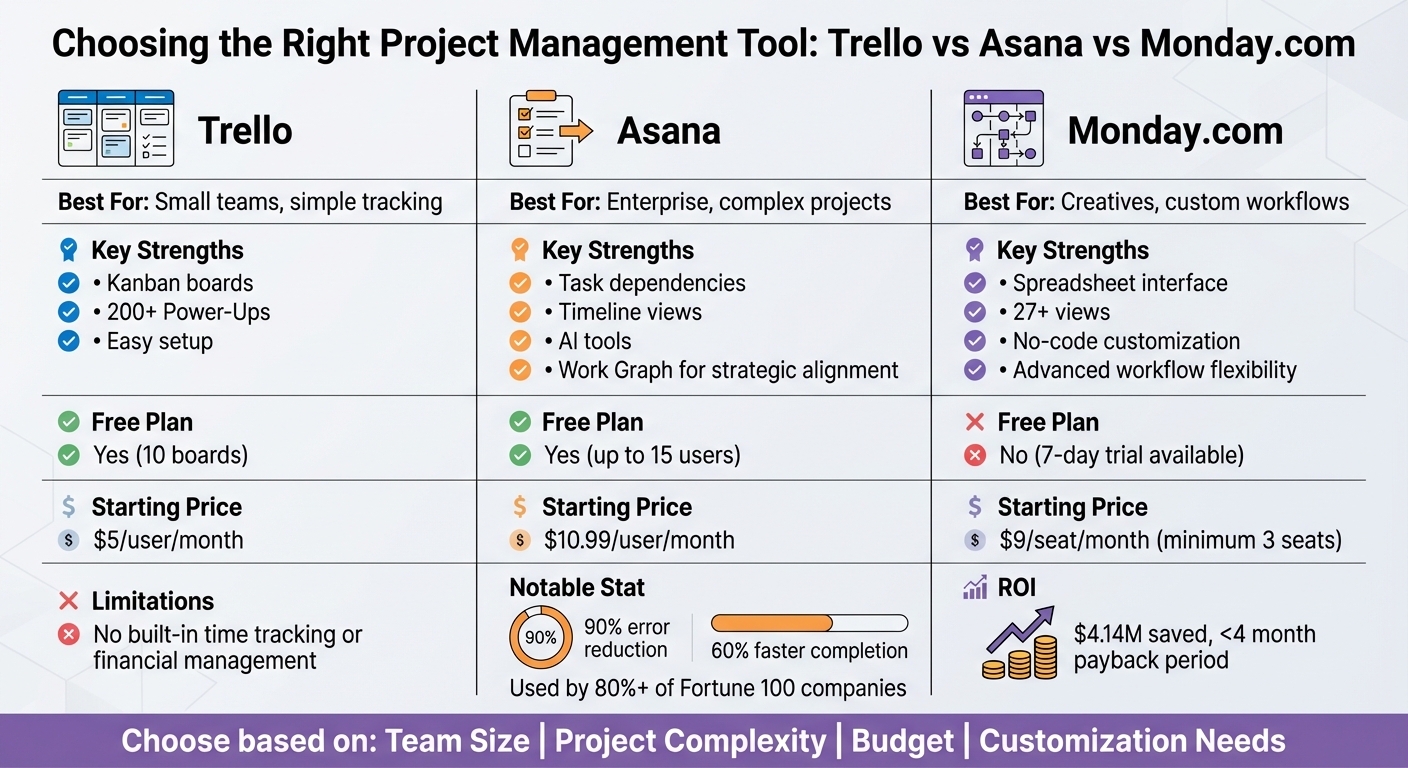
Project Management Tools Comparison: Trello vs Asana vs Monday.com Features and Pricing
What to Consider Before Choosing a Tool
Picking the right project management tool can make a big difference in how your team operates. It can help smooth out workflows, prevent burnout, and turn chaotic processes into efficient ones. Start by identifying your team’s pain points – whether it’s missed deadlines, messy workflows, uneven workloads, or communication breakdowns – and use these as your guide.
Look for a tool that fits into your existing processes. Features like custom task statuses, project templates, and multiple views (Kanban, Gantt, List) can help tailor the tool to your needs. It’s also important that the tool grows with your team without driving up costs. Statistics show that 77% of high-performing teams rely on project management software, and companies that invest in these tools waste significantly less money compared to those that don’t.
Ease of use is another priority. Tools with drag-and-drop functionality and intuitive interfaces can make onboarding faster and less stressful. Before fully committing, run a pilot program with a small group using the tool on a real project. This will highlight any issues that might arise when the tool is used at scale. Also, check in with your team – does the tool help them feel more in control, or does it add to their stress? That emotional feedback is a strong indicator of whether the tool will be adopted long-term.
"I simply don’t trust any software company that won’t let me use the full software package for a specific free trial period. As project managers, we have a lot on the line if we endorse a platform that ends up being the wrong choice."
Integration is another key factor. The tool should work seamlessly with your existing tech stack. For tech startups, don’t overlook essentials like security and compliance. Features such as data encryption, role-based access, and adherence to standards like SOC 2 or GDPR are must-haves. Finally, weigh the software’s cost against the potential savings in time and error reduction.
"Someone has to be able to provide a total-cost-of-ownership calculation that proves that investing in this software saves your organization money."
With these benchmarks in mind, you’re ready to evaluate the top tools.
Tool Comparison: Trello, Asana, and Monday.com
Once you’ve outlined your criteria, it’s time to compare the leading tools to find the one that fits your team’s needs. Here’s a snapshot of how Trello, Asana, and Monday.com stack up:
Trello is a straightforward option centered around Kanban boards. It’s perfect for small teams managing simple projects, where tasks move visually from "To Do" to "Done." The free plan allows unlimited cards and users but limits you to 10 boards. Paid plans start at $5 per user per month (billed annually). Trello offers over 200 Power-Ups to expand its functionality, but it doesn’t include built-in time tracking or financial management features. In 2024, Prolex Media moved away from Trello due to these limitations.
Asana is designed for larger teams and complex, cross-functional projects. As of September 2022, over 80% of Fortune 100 companies use it. The free plan supports up to 15 users, while the Starter plan costs $10.99 per user per month (billed annually). Asana stands out with features like task dependencies, timeline views, and its "Work Graph" for aligning projects strategically. Using Asana has been shown to reduce project errors by up to 90% and cut completion times by 60%.
"Asana is best for small to large teams that want to build projects off templates and use AI-powered project management and execution tools."
Monday.com is a flexible "Work OS" that allows teams to create custom workflows using a spreadsheet-like interface. It’s especially popular with creative teams and those transitioning from traditional spreadsheets. While there’s no free plan, a 7-day trial is available, and pricing starts at $9 per seat per month (minimum of 3 seats). Teams using Monday.com have reported saving $4.14M through improved processes, with a payback period of less than four months. Its 27+ views and no-code customization make it a powerful option for teams that need flexibility.
| Tool | Best For | Key Strengths | Free Plan | Starting Price (USD) |
|---|---|---|---|---|
| Trello | Small teams, simple tracking | Kanban boards, 200+ Power-Ups, easy setup | Yes (10 boards) | $5/user/month |
| Asana | Enterprise, complex projects | Task dependencies, timeline views, AI tools | Yes (up to 15 users) | $10.99/user/month |
| Monday.com | Creatives, custom workflows | Spreadsheet interface, advanced customization | No (7-day trial) | $9/seat/month (min. 3 seats) |
When deciding, think about your team’s size, the complexity of your projects, and your budget. Trello is great for visual thinkers managing simple tasks, Asana works well for larger teams juggling multiple projects, and Monday.com is ideal for teams needing highly tailored workflows. Try running a pilot project with each tool to see which one fits your team’s style best. After all, the right tool is the one that works seamlessly with how your team operates – not just the one that looks good in a demo.
sbb-itb-7c1dd7e
How to Set Up and Use Project Management Tools
Step 1: Review Your Current Workflow
Once you’ve chosen your project management tool, the next step is to align it with how your team currently operates. Start by mapping out your daily processes: identify key stakeholders, gather essential documents and feedback, and outline your workflow to uncover inefficiencies like bottlenecks or redundant steps. This groundwork helps create a smoother, more efficient operation and reduces unnecessary stress for your team.
Pay special attention to information silos – areas where data gets stuck – and repetitive tasks that don’t add real value. It’s worth noting that companies lose an average of 11.4% of their resources due to poor project management.
To clarify roles and responsibilities, consider using a RACI matrix. This tool defines who is Responsible, Accountable, Consulted, and Informed for each step, eliminating confusion during the transition to a new system. Also, evaluate metrics such as cycle time, lead time, and touch time to identify delays. Set SMART goals (specific, measurable, achievable, relevant, and time-bound) to guide your improvements.
"The top causes of project failure include changes in objectives (37%), inaccurate requirements (35%), and poor communication (29%)." – Project Management Institute
Distinguish between "Process" workflows (routine, repeatable tasks like onboarding) and "Case" workflows (unique, one-off activities). This distinction will help you decide which tasks are best suited for automation.
Step 2: Create and Organize Your Tasks
After analyzing your workflow, it’s time to structure your projects within the tool. Use a Work Breakdown Structure (WBS) to break large goals into smaller, manageable pieces. Organize these into Projects, Tasks, and Subtasks, creating a clear hierarchy that everyone can follow.
Assign one person to each task to ensure accountability, and use clear deadlines in MM/DD/YYYY format. For complex tasks, build in buffer time based on your team’s capacity and past performance.
Choose the layout that fits your project best. Kanban boards are great for tracking task statuses, Gantt charts work well for timelines, and calendar views help manage deadlines. Use custom fields to track important details like priority levels or work stages, and define what "done" looks like for every task. For recurring processes, create templates – like one for product launches or onboarding – and set milestones to mark major phases of the project.
"A timeline built on hope is destined to fail. To create a realistic timeline, you must account for real-world factors like team capacity, competing priorities, and the simple fact that unexpected issues will arise." – Slack
Step 3: Connect Your Tools and Automate Tasks
Integrate your project management tool with platforms like Slack or Microsoft Teams to keep discussions focused and minimize the need to switch between apps. Attach files from Google Drive or Dropbox directly to tasks, so team members can find what they need without wasting time searching.
Use no-code workflow builders to automate repetitive actions, such as creating tasks, sending reminders, or updating statuses. Set up task dependencies (like Finish-to-Start) to notify team members when they can begin their work. Automations like these can significantly cut down on wasted effort – especially since knowledge workers spend about 13% of their time redoing work that’s already been completed.
For example, in February 2025, Deanna Connolly, a Brokerage Services Associate at Foundry Commercial, shared how her team saved at least one day per week by using ClickUp. The tool enabled seamless task handoffs and provided supervisors with real-time workload visibility, reducing internal email volume.
"ClickUp allows us to QUICKLY pass projects to each other, EASILY check the status of projects, and gives our supervisor a window into our workload at any time without her having to interrupt us." – Deanna Connolly, Foundry Commercial
Before rolling out automations on a larger scale, test them with a single team or project to gather feedback and ensure a smooth implementation.
Step 4: Track Results and Make Adjustments
Once your integrations and automations are in place, focus on tracking progress and refining your processes. Use live dashboards and portfolios to monitor multiple projects at once. Automated reports can replace manual status meetings, allowing stakeholders to review updates on their own schedule.
Track key metrics like on-time task completion, cycle times, and resource allocation through these dashboards. Regularly hold asynchronous reviews to identify areas for improvement. Missing deadlines is a common issue – 26% of them are missed weekly due to a lack of clarity and tracking.
Team feedback is critical. If the tool makes your team feel more in control and less stressed, it’s a strong indicator of success. On the other hand, if certain features go unused or workflows feel cumbersome, make adjustments. These tweaks not only improve productivity but also support your team’s well-being.
Keep refining automations and workflows based on how your team uses the tool. Periodically review custom fields and views to ensure they still meet your evolving needs. Remember, the goal is ongoing improvement, not perfection from the start. The best workflows adapt as your team’s needs change.
Practical Tips for Getting More Done with Less Effort
Using Tools with Time Management Methods
Pairing project management tools with effective time management techniques can lead to noticeable productivity improvements. In fact, 82% of employees use task-tracking software to stay organized. By combining these tools with structured methods, you can focus on what matters most without getting overwhelmed.
Take the Eisenhower Matrix, for example. By setting up custom priority fields in your project management tool – like "Urgent & Important", "Important but Not Urgent", and so on – you can visually sort tasks. This helps you concentrate on high-impact work instead of reacting to every request. Tasks marked for delegation? Automate them to the right team member to save time.
Another tip is syncing your task list with your calendar. This allows you to block uninterrupted hours for deep work.
"I block time between meetings for focused work and short breaks – and set my Slack to ‘heads down’ so others know I’m unavailable."
– Julia Bersin, Senior Manager of Demand Generation at Guru
The "Eat the Frog" method is another game-changer. Tackle your most challenging task first thing in the morning and mark it as your top priority.
"Working in batches, especially with planning, really helps you prioritize the work while still giving you the ability to be dynamic to what’s happening or what may be coming."
– Alex Maroldi, Head of Commerce at Youth to the People
The 80/20 Rule (also known as the Pareto Principle) becomes actionable when you label tasks by their impact. For instance, create a custom "Impact" field in your tool to identify the 20% of tasks that produce 80% of your results. This ensures your team stays focused on what truly drives progress.
A practical example: In 2025, GoSpotCheck’s Director of Engagements, Josh Mitchell, used automation to streamline customer requests. By automating workflows, his team saved a significant amount of time.
| Method | Best Use Case | Tool Implementation |
|---|---|---|
| Eisenhower Matrix | Decision-making and delegation | Custom priority fields |
| Eat the Frog | Overcoming procrastination | Morning task scheduling |
| Time Blocking | Protecting deep work sessions | Calendar integration |
| 80/20 Rule | Focusing on high-impact tasks | Custom "Impact" fields |
These strategies not only streamline task management but also help create a more balanced and productive workday.
Balancing Productivity with Mental Health
While managing time effectively boosts productivity, maintaining mental health is just as important. In 2020, 71% of knowledge workers reported experiencing burnout at least once, and nearly 25% felt burned out four or more times in a single year. Often, the issue isn’t the tools themselves – it’s how they’re used.
For instance, enabling "Do Not Disturb" or "Snooze" modes during focus hours can help limit interruptions. This not only reduces notification fatigue but also signals to your team that you’re unavailable.
"When it’s time to put it down, put it down. Turn off the notifications. While one teammate may want to post at night because it’s after the kids go to bed, that doesn’t have to create a sense of urgency for others."
– Patti Chan, VP of Digital Product at Imperfect Foods
Workload management dashboards are another helpful tool. They provide visibility into team capacity, allowing you to redistribute tasks before burnout becomes an issue. This is especially important since 32% of burned-out workers report feeling unable to disconnect.
Another tip: leave about 20% of your workday unscheduled. This buffer time can be used to handle unexpected issues or simply reset between tasks. Ending your day by organizing tasks for tomorrow in your project management tool can also reduce morning stress and provide a clear starting point.
Don’t overlook physical breaks – they’re essential for maintaining energy.
"To help ensure you don’t burn out while working remotely, find new ways in this digital world to separate yourself from your screen and to take the time that you need. Also, I highly recommend the one-minute dance party – simply get up and move."
– Elise Melendez, Marketing Manager at the American Marketing Association
Use your calendar to schedule short walks or stretches throughout the day. Even small breaks make a big difference.
In 2025, the creative team at the San Francisco AIDS Foundation, led by Creative Director Roxane Chicoine, centralized all project details into a single project management tool. This eliminated the stress of juggling scattered requests and created a streamlined workflow. Having one central hub for information reduces the mental load of remembering where everything is stored, making it easier to focus on meaningful work.
Conclusion
Improving productivity isn’t about working longer hours – it’s about working smarter. By using the right project management tools, you can replace scattered spreadsheets and endless email threads with a centralized system that keeps everything in one place. This shift reduces time spent searching for information and allows your team to focus on tasks that truly matter. When you streamline workflows, automate repetitive tasks, and clearly define responsibilities, you create room for the impactful work that drives growth.
The benefits speak for themselves: a 30% boost in efficiency, up to a 15% reduction in project costs, and an average ROI of 20%. But beyond these numbers, the real payoff lies in protecting your team from burnout, supporting their mental well-being, and building flexible workflows that grow with your business.
"My number one project management tip is to always reflect after a project. Then you can take everything you learned and create a playbook so you’re ready the next time you need to plan and manage a similar project."
– Kerry Anne Hoffman, Senior Project Manager, Marketing Operations, ClassPass
Getting started doesn’t have to be overwhelming. Try a free plan or a 14-day trial to test the waters. Use templates for recurring tasks and integrate your tool with apps like Slack or Google Drive to eliminate data silos. Make regular retrospectives part of your routine to refine and improve your workflows over time. This approach not only optimizes your processes but also fosters a healthier, more sustainable work environment.
The goal isn’t to achieve perfection overnight. It’s about creating a system that grows with your team, reduces unnecessary busywork, and allows you to focus on what you do best. With the right foundation, productivity becomes a steady rhythm rather than a constant grind.
FAQs
How do project management tools help prevent burnout in tech teams?
Project management tools play a key role in reducing burnout by offering teams a clear picture of tasks, responsibilities, and workloads. Features like resource management dashboards and real-time progress tracking help identify team members who might be overwhelmed, allowing tasks to be redistributed before stress becomes a problem. This level of transparency ensures workloads stay manageable and prevents overcommitment.
Automation is another game-changer. By handling repetitive tasks such as status updates or manual reporting, these tools free up mental bandwidth, letting team members focus on more creative and meaningful work. Organizing tasks into prioritized boards or lists also helps individuals concentrate on one task at a time, cutting down on the chaos of constant multitasking. Plus, early warning signs like overdue tasks or uneven workloads give leaders the chance to address potential issues before they spiral out of control.
With a better understanding of priorities and capacity, teams can set achievable goals, celebrate milestones, and maintain a steady, sustainable pace. This proactive approach to work management fosters a healthier, more productive work environment.
What should I consider when choosing the right project management tool?
When picking a project management tool, focus on features that make your workflow smoother and improve how your team works together. Look for tools with task and project organization options, such as boards, lists, or timelines, to break tasks into smaller, more manageable steps. Features like automation – think recurring tasks or rule-based triggers – can handle repetitive work, saving you valuable time.
It’s also important to choose a platform with reporting and analytics to monitor progress and make smarter decisions. Collaboration tools – including shared comments, file attachments, and notifications – help keep everyone on the same page. Lastly, ensure the tool integrates easily with your current software and offers strong security features, such as role-based permissions and data encryption, to protect your work.
How can project management tools help improve efficiency and team communication?
Project management tools streamline how teams work by bringing tasks, updates, and files into one organized space. This setup lets teams clearly visualize workflows, set priorities, and even automate those repetitive tasks that eat up time. Features like customizable boards and timeline views make it simple to monitor progress and tweak plans when needed.
These tools also make communication smoother by keeping updates, comments, and attachments tied directly to tasks. No more digging through endless email chains or chat threads to find what you need. With real-time notifications and built-in messaging, everyone stays on the same page, and decisions can be made faster. The result? A more efficient, collaborative environment where teams can focus on the work that truly matters.