Feeling overwhelmed by tasks and endless notifications? Productivity apps can help you organize your day, save time, and reduce stress. They centralize your to-dos, automate repetitive tasks, and create clear boundaries between work and personal life. Here’s how you can use tools like Todoist, Habitica, and Google Calendar to take control of your workflow:
- Track Your Time: Log daily activities to identify inefficiencies.
- Set Goals: Focus on measurable targets like saving hours or prioritizing high-impact work.
- Choose the Right Apps: Start with tools that address your main challenges, such as task management, habit tracking, or scheduling.
- Integrate Apps: Link tools like Todoist and Google Calendar for a unified system.
- Automate Tasks: Use Zapier to reduce manual effort and improve coordination.
- Build a Dashboard: Centralize everything in Notion for easy access.
5 Free To-Do List Apps That Actually Keep You Organized
Step 1: Review Your Daily Routine and Find What Needs Improvement
Before diving into productivity apps, take a step back and examine how you’re spending your time. Studies suggest that entrepreneurs often lose over a third of their workweek to minor tasks like invoicing, data entry, or ordering office supplies. These seemingly small activities can quietly eat up hours without you even noticing – until you start tracking them.
Track Your Daily Activities
Spend at least a week, or even a month, logging your daily activities. This isn’t just busywork; it’s a way to get an honest look at how your time is being spent. Write down everything you do throughout the day, including start and end times for each task. Precision is key here – vague notes can lead to inaccurate conclusions.
If you’re using handwritten notes, you’re in luck; research shows that writing by hand can help improve memory retention. As you track, pay attention to distractions or delays. For example, tools like RescueTime might reveal that distractions are eating up more than two hours of your day.
Once you’ve gathered enough data, analyze it. Ask yourself: Are you spending enough time on tasks that truly push your business forward? When do you feel most productive, and when do you hit a slump? What activities seem to drain your energy without contributing to your main goals? Identifying these patterns can help you spot bottlenecks, whether they stem from poor task management, inconsistent habits, or a cluttered schedule. These insights will guide you in choosing the right productivity tools to address those pain points.
Set Clear Productivity Goals
Armed with data, it’s time to set specific goals. Avoid vague ambitions like "be more productive." Instead, aim for measurable targets: for example, reclaim 10 hours a week from repetitive tasks, cut down on time spent on low-priority activities, or improve how you allocate time to high-impact work.
Your goals might also include reducing tool-switching, automating repetitive tasks (like invoicing), or better separating work and personal time. Make sure these objectives align with both your professional priorities and personal well-being. Write down your top three productivity goals and keep them visible as you start exploring potential apps.
Choose Apps That Match Your Goals
Once your goals are clear, you can start looking for tools that directly address your challenges. For task management, apps like Todoist help you organize and prioritize your to-dos effectively. If you’re struggling to build consistent habits – like exercising or reading – Habitica offers a fun, gamified way to track your progress. And for managing a packed schedule, Google Calendar is a great option for centralizing meetings, deadlines, and personal commitments on a single visual timeline.
The key is to start small. Begin with one or two apps that tackle your biggest challenges instead of overwhelming yourself with too many tools at once. Look for apps with simple interfaces, seamless integration into your current workflow, and free trials so you can test them before committing. Remember, success isn’t about collecting a bunch of apps – it’s about building a system that works for you. In fact, productivity often depends more on the system you create (about 70%) than on the tools themselves (roughly 30%).
Step 2: Set Up and Use Key Productivity Apps
Once you’ve identified areas where your productivity could improve, it’s time to set up tools that streamline your workflow. The goal here is to build a system that you can fine-tune as you go.
Set Up Todoist for Task Management
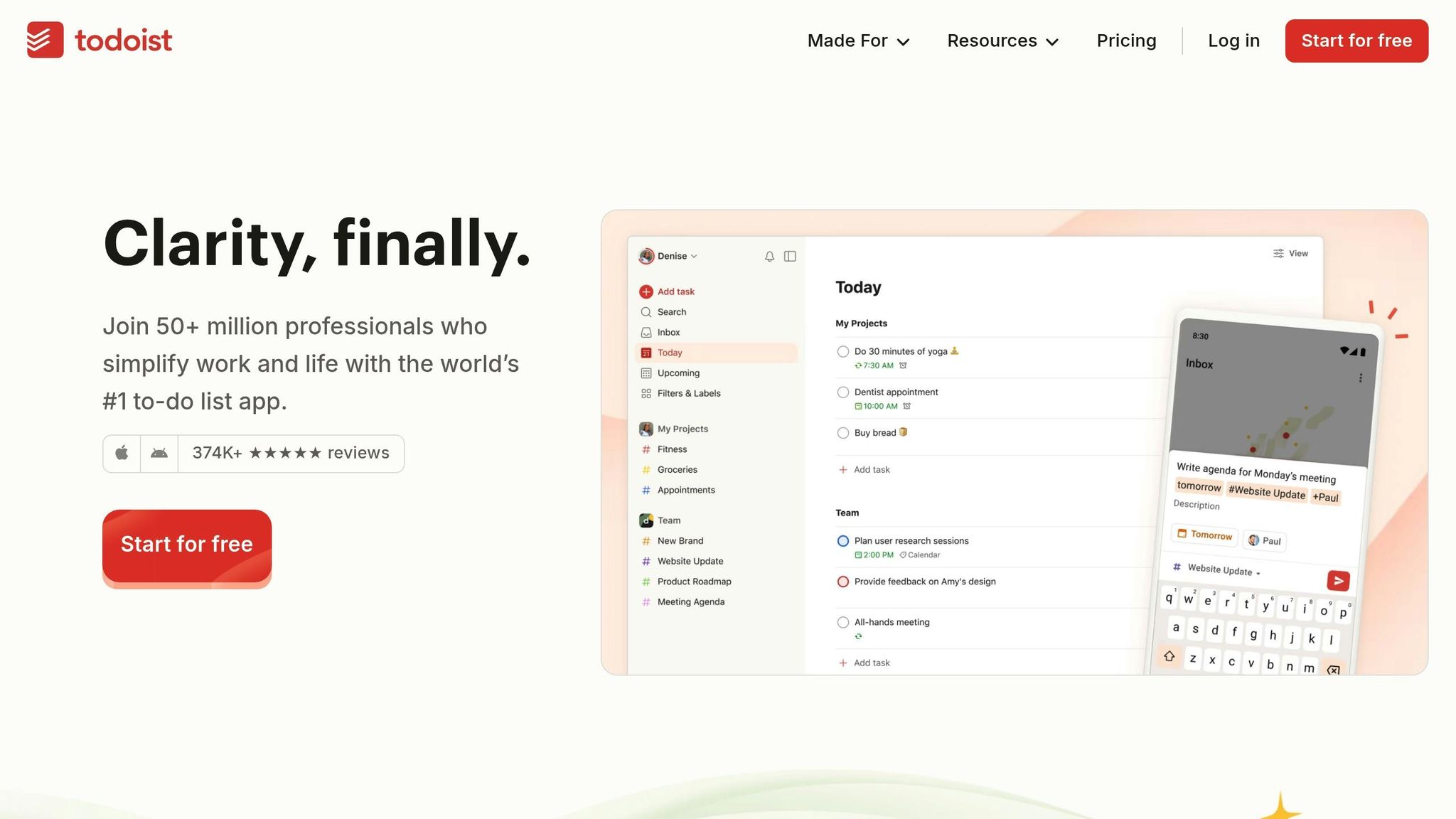
Todoist is a powerful tool for keeping track of everything – from major projects to quick reminders. By capturing all your tasks in one place, you free up mental energy and avoid the stress of trying to remember what needs to get done.
One of Todoist’s standout features is its natural language input. You can type phrases like "tomorrow at 9am" or "every Monday", and the app will automatically schedule tasks for you. For larger projects, break them into smaller, actionable subtasks. For instance, a project like "Launch a website" could be divided into steps like "Write homepage copy", "Design mockups", and "Set up hosting." Filters can help you zero in on what matters most.
Todoist also lets you prioritize tasks with four levels of importance. Mark your most critical tasks as p1 and tackle them first. Productivity expert Carl Pullein recommends limiting your daily list to about 10 tasks, with only two marked as p1. You can even create custom views, like a "today & p1" filter, to focus on your top priorities.
For better organization, group tasks into projects and sections. For example, if you’re planning a product launch, you might create sections such as "Marketing", "Development", and "Customer Support." Adding labels like "@email" or "@5_minutes" can further streamline your workflow by helping you quickly identify tasks based on context or time commitment.
Once you’ve mastered task management, it’s time to work on building productive habits.
Use Habitica to Build Better Habits
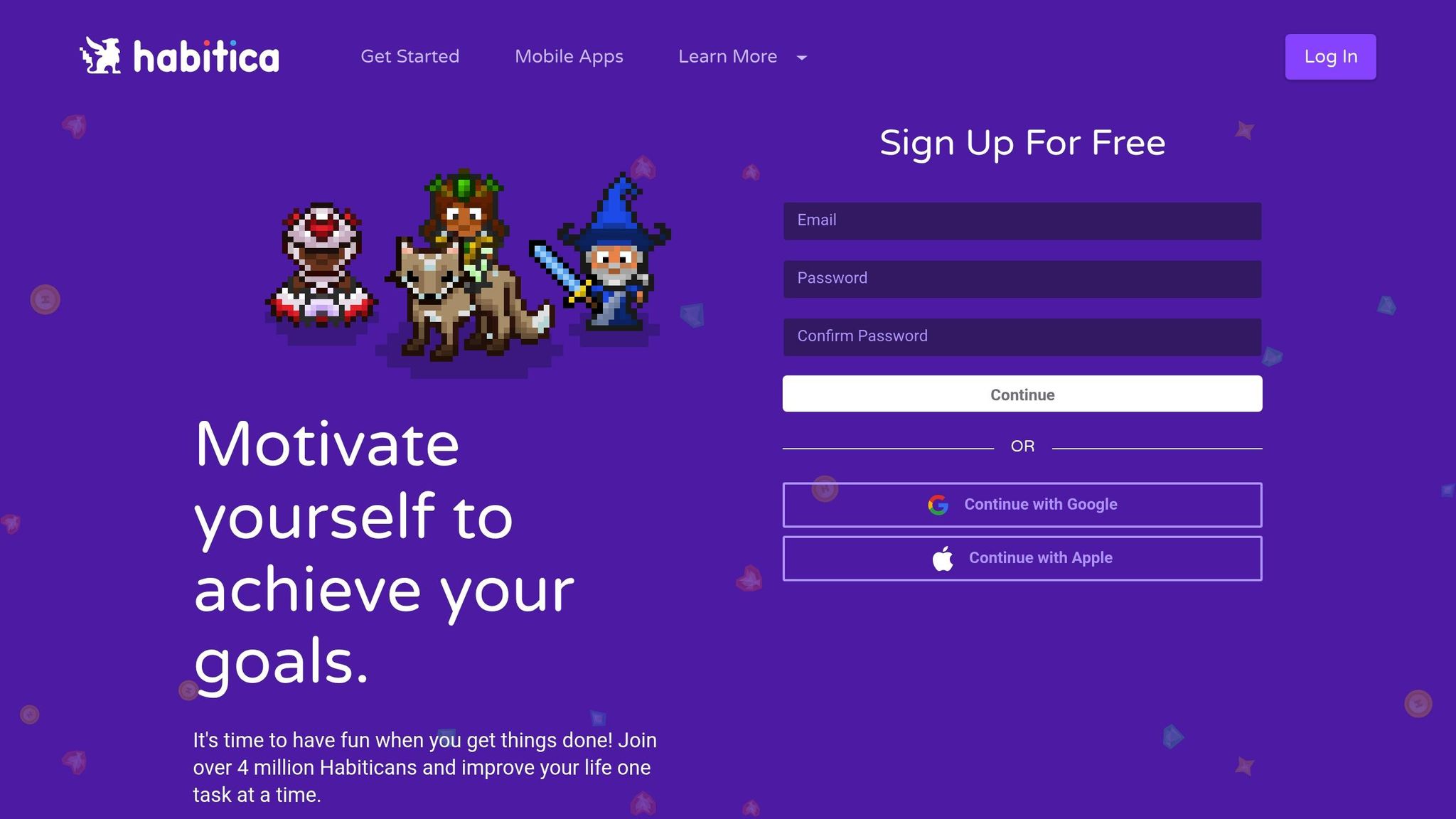
Habitica turns habit-building into a game, making daily actions like exercising, meditating, or taking breaks feel rewarding. As you check off tasks, you’ll earn gold and experience points, which help you level up your character and unlock fun in-game items.
Set up habits such as "Take a 15-minute walk" or "Step away from the screen at lunch", and mark them complete as you go. But here’s the catch – Habitica only works if you’re honest. If you start checking off habits without actually doing them, the app loses its value. Focus on being consistent rather than perfect to avoid burnout and stay motivated.
Now that you’ve got tasks and habits covered, let’s bring everything together with a centralized calendar.
Manage Your Schedule with Google Calendar
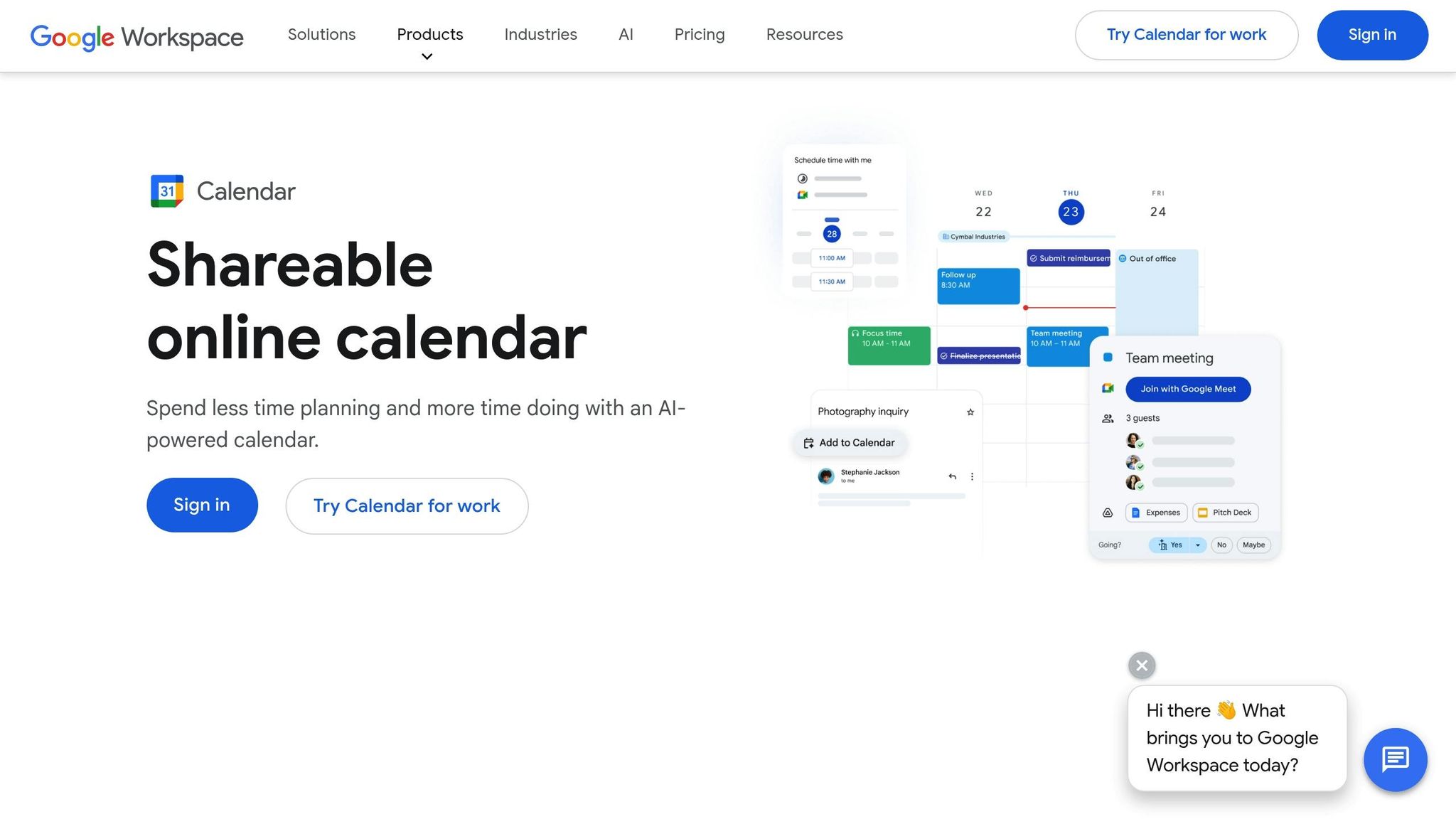
Google Calendar acts as your command center for managing time effectively. Start by color-coding your activities – use blue for meetings, green for focused work, and red for personal appointments. Block out dedicated time for tasks, like setting aside a few uninterrupted hours to work on a proposal.
You can also create separate calendars for different aspects of your life. For instance, one calendar for "Work Meetings", another for "Personal", and a third for "Focus Time" can help you maintain boundaries and avoid scheduling conflicts.
Customize alerts to suit your needs – set a 30-minute reminder for calls or a full-day alert for important deadlines. Sync Google Calendar with Todoist for a comprehensive view of your day. And if you’re coordinating across time zones, like scheduling a meeting between New York and Los Angeles, Google Calendar will automatically adjust to show times in your local zone.
These tools, when used together, can help you take control of your productivity and make the most of your time.
sbb-itb-7c1dd7e
Step 3: Connect Your Apps for a Unified System
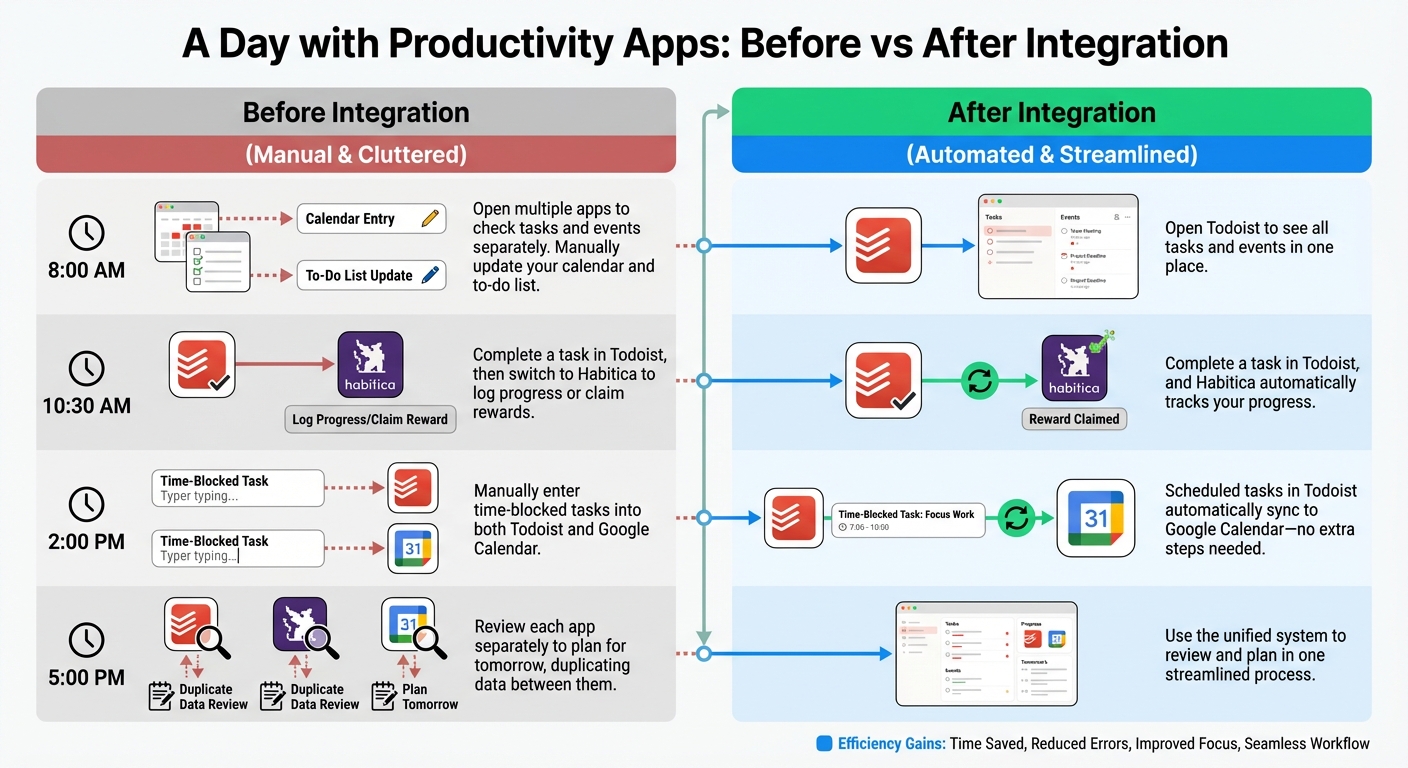
Before and After Productivity App Integration: Daily Workflow Comparison
Now that you’ve organized your task management, habit tracking, and scheduling tools, it’s time to take the next step: connecting these apps for seamless coordination. By linking them, you can cut down on repetitive tasks like switching between tools or entering the same information multiple times.
Link Apps Together for Better Coordination
Some apps, like Todoist and Google Calendar, already offer built-in integrations. For example, you can go to Todoist’s Settings, find the "Calendars" section, and choose "Connect Google Calendar." Once you enable "Sync tasks to calendar", any task scheduled in Todoist – like one set for 2:00 PM – will automatically show up in Google Calendar. This gives you a single, comprehensive view of your day [29, 31, 33].
For more advanced connections, tools like Zapier or Appy Pie Automate can help you create custom workflows without needing to write a single line of code. These platforms allow you to link apps like Habitica and Todoist. For instance, you can set up an automation where high-priority tasks from Todoist automatically show up as daily challenges in Habitica. Appy Pie Automate even offers pre-made templates, such as "Create Task to Todoist from New Task in Habitica", making the setup process even easier [30, 32].
According to Appy Pie Automate, syncing task apps with gamified systems like Habitica can triple the likelihood of hitting 90% of your daily goals.
You can also connect Habitica with Google Calendar through these automation tools. This setup ensures that scheduled events in your calendar can trigger habit tracking in Habitica – or vice versa. To avoid clutter, you can apply filters, syncing only high-priority tasks from Todoist to Habitica. This targeted approach keeps your system efficient, allowing each app to do what it does best.
By integrating these tools, you’ll create a system that works smarter, not harder, transforming how you approach your workday.
Before and After: A Day with Productivity Apps
The table below shows how connecting your apps can dramatically improve your workflow.
| Time | Before Integration | After Integration |
|---|---|---|
| 8:00 AM | Open multiple apps to check tasks and events separately. Manually update your calendar and to-do list. | Open Todoist to see all tasks and events in one place. |
| 10:30 AM | Complete a task in Todoist, then switch to Habitica to log progress or claim rewards. | Complete a task in Todoist, and Habitica automatically tracks your progress. |
| 2:00 PM | Manually enter time-blocked tasks into both Todoist and Google Calendar. | Scheduled tasks in Todoist automatically sync to Google Calendar – no extra steps needed. |
| 5:00 PM | Review each app separately to plan for tomorrow, duplicating data between them. | Use the unified system to review and plan in one streamlined process. |
Step 4: Advanced Customization and Automation Techniques
Take your unified system to the next level with advanced automation and centralized tracking. These techniques build on your existing app integrations, helping you eliminate repetitive tasks and streamline team collaboration.
Automate Tasks with Zapier

Zapier connects over 8,000 apps, making it a powerful tool to automate routine tasks. It operates using "Zaps", which are workflows triggered by specific events and followed by one or more actions. For instance, when a new email arrives in Gmail (Trigger), Zapier can automatically add the email’s details to a Google Sheet (Action).
Here’s a practical example: you can create a Zap that integrates Google Sheets, Notion, and ChatGPT to manage content pipelines. This setup ensures no duplicate entries and keeps all systems in sync.
Businesses have reported saving up to $1 million in potential revenue recovery and drastically cutting down manual work hours thanks to such automation.
Start small with simple Zaps – like syncing tasks from Todoist to Google Sheets or sending Slack notifications for high-priority tasks. Once you’re comfortable, move on to Multi-Step Zaps, which chain multiple actions together. For example, a new email could simultaneously create a task in Todoist, add a row in Google Sheets, and send a Slack notification. Use Filters to refine these workflows, ensuring Zaps only activate under specific conditions, such as when an email includes certain keywords.
Automation is just one part of the equation; centralizing your data can further improve clarity and efficiency.
Create a Central Dashboard with Notion
Notion serves as an all-in-one hub where you can consolidate your most-used tools, links, and views into a custom dashboard. For example, you can integrate views from Todoist, Habitica, and Google Calendar into a single Notion page.
Workflow design expert Marie Poulin uses a "Today" dashboard in Notion to stay focused. Her dashboard displays tasks scheduled for the day, grouped by their status – like "Now", "In Progress", or "Next." It also includes a linked view for "Knowledge capture/retrieval", combining databases such as Library, Notes + Ideas, and Documentation.
"It’s not about building a ‘perfect’ setup – it’s about having a place to land that helps you reset and move through the day." – Tamia Lindsey, Productivity Headquarters
Instead of duplicating data, use linked databases to create filtered views tailored to your needs. For example, you might display "Today’s Priorities" or "This Week’s Projects" from your master task list. To reduce visual clutter, use toggle blocks to hide unnecessary details, expanding them only when needed. Start with simple blocks and move to databases only if your workflow demands it.
Expand from Individual to Team Use
Once your personal system is running smoothly, you can scale it for team collaboration. The same apps and automation principles apply, but you’ll need to enable shared access and collaboration features. High-performing organizations are 5.5 times more likely to prioritize workforce collaboration than their lower-performing counterparts.
Set up shared calendars, create collaborative projects in Todoist, and use a team workspace in Notion to keep everyone aligned. Companies that adopt collaborative tools often see productivity gains of up to 30%. However, scaling requires clear communication and well-defined roles. Poor communication is responsible for project failures 56% of the time, while companies with strong communication practices are 4.5 times more likely to retain top talent.
Zapier can also simplify team workflows. For example, you could set up a Zap to send Slack alerts for high-priority task assignments. Marcus Saito, Head of IT and AI Automation at Remote, shared that his company automated over 11 million tasks in 2024 using Zapier, saving 2,219 days of work each month. Impressively, their three-person IT team uses automation to resolve 28% of company requests.
Conclusion: Get More Done with the Right Apps
Take control of your daily routine by using productivity apps to streamline your tasks and free up time for what truly matters – whether it’s high-priority work or personal moments. Apps like Todoist, Habitica, and Google Calendar can help you create a system that works for you. Start by identifying your biggest challenges, and focus on mastering a few key tools before adding more to the mix.
Experiment with free trials to find the apps that suit your workflow best. The ideal app is one you’ll actually use – something easy to navigate and that integrates smoothly into your daily habits. Instead of juggling multiple tools, aim for a cohesive system that minimizes context switching and mental fatigue. Experts emphasize this approach:
"Productivity apps are just tools: They don’t inherently make someone more productive. Their effectiveness hinges on the user’s approach and how well the app aligns with their needs and work style." – Briefmatic
FAQs
How can I find the best productivity app for my daily routine?
To pick the best productivity app, start by pinpointing your main challenge – whether it’s keeping track of tasks, sticking to a schedule, or developing consistent habits. Focus on apps that are simple to navigate, work seamlessly with tools you already use, and include helpful features like reminders or automation to streamline your daily routine.
Start small by choosing one app that tackles your biggest need. For instance, you could try Todoist for managing your to-do lists, Google Calendar for scheduling, or a habit tracker to build steady routines. Give the app a test run for a few weeks, and only consider adding more tools if absolutely necessary. Keeping your setup simple is the secret to staying productive without feeling overwhelmed.
What are the advantages of using productivity apps in your daily routine?
Using productivity apps can transform how you manage your day. They help you stay organized, keep track of tasks, and make better use of your time. With features like scheduling tools, habit tracking, and priority management, these apps can reduce stress and make your routine more efficient.
Incorporating tools like task managers or habit trackers into your daily workflow can simplify processes, prevent missed deadlines, and support a better work-life balance. Whether you’re juggling team projects or personal goals, these apps make staying on top of everything much more manageable.
What’s the best way to automate tasks using productivity apps?
To make your tasks run smoother and faster, consider using tools like Todoist to manage recurring to-dos, Zapier to link apps and automate workflows, and Notion to organize and streamline databases. These apps offer features like triggers, scheduled actions, and customizable templates, making it easier to handle repetitive tasks without much effort.
By automating these everyday processes, you’ll save time, cut down on manual work, and maintain consistency in your routine – all while freeing up mental space for the things that truly matter.